# Invoicing

Write invoices based on tracked costs, bookings, or by converting quotes into invoices. freispace allows for granular control over your invoice's design, contents and legal specifics.

## Creating a new invoice[​](#creating-a-new-invoice "Direct link to Creating a new invoice")

1. Navigate to the "Invoices" tab.
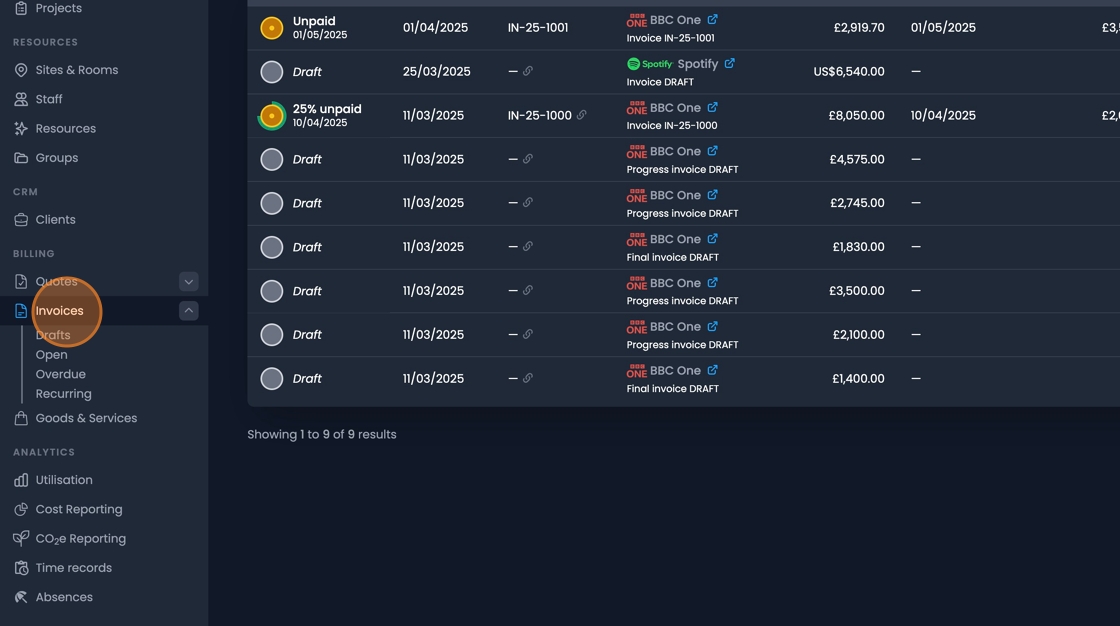
![Invoices tab navigation for accessing invoice management interface](/assets/images/invoicing-tab-navigation-937cb989de9cae8291ce68aaef35e288.jpeg)

2. Select "New Invoice" or "New recurring invoice" from The drop-down menu as required.

![New invoice dropdown menu with options for standard and recurring invoices](/assets/images/invoicing-new-invoice-dropdown-cdf0923327cdeba04bfaf80e8f87ab3a.webp)

## Invoice recipient[​](#invoice-recipient "Direct link to Invoice recipient")

3. Either manually type the address in the "Recipient" box.
   <br />
   <!-- -->
   Or click "Select" to choose a client from your list.

![Recipient selection interface with manual entry option and client list selection](/assets/images/invoicing-recipient-selection-ab7a57d4c79ed3553ac0f0c098652f48.webp)

## Invoice details[​](#invoice-details "Direct link to Invoice details")


4. Fill out required details, such as the "Invoice date", Due date" or "service period" through the checkboxes on the right.
![Invoice details checkboxes for date, due date, and service period configuration](/assets/images/invoicing-details-checkboxes-835020b8212a3e5b43022ac6a2a09324.webp)

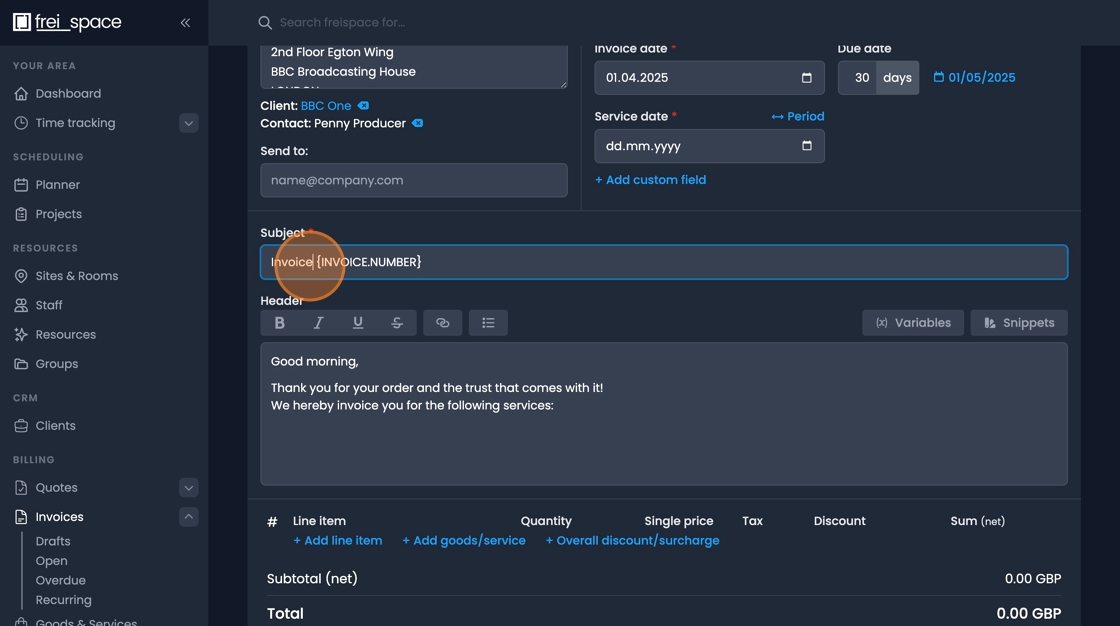
5. Adjust the "Subject" field as required.
![Subject field for customizing invoice title and reference information](/assets/images/invoicing-subject-field-2cfcb6ef374bfc277f992de7e91f73ff.jpeg)

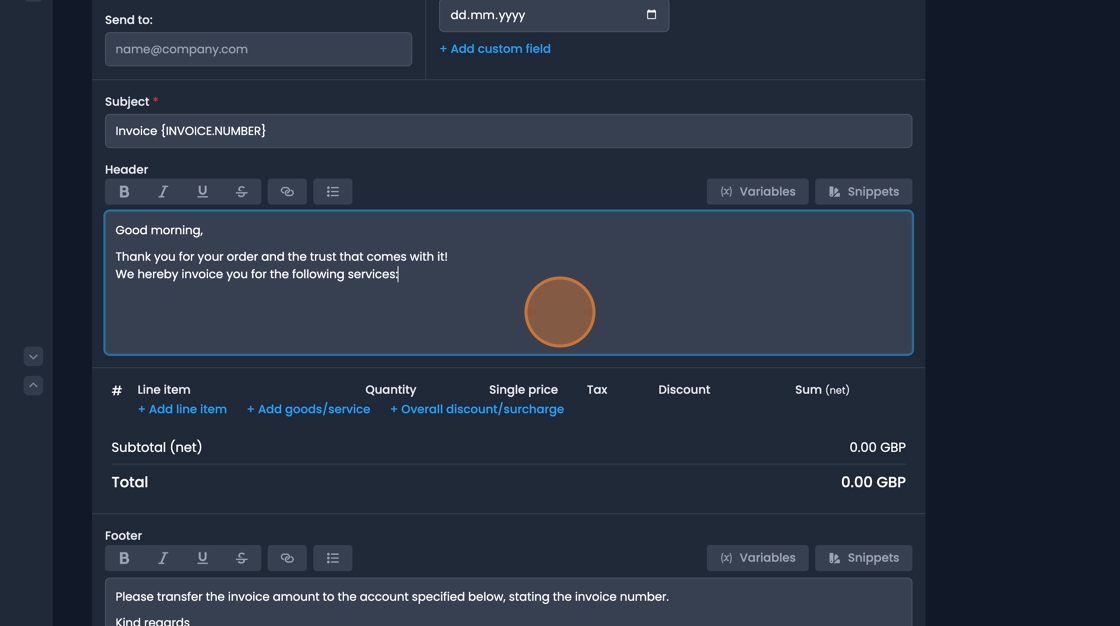
6. Use the "Header" text box for adding unformatted information to the beginning of your invoice, such as a greeting.
![Header text box for adding greetings and unformatted information to invoice top](/assets/images/invoicing-header-text-box-d4fafadc92a92fc136626370ad12b989.jpeg)


7. Text snippets can be saved as templates.
   <br />
   <!-- -->
   "Variables" can e inserted for automating information about the "date and time", "the recipient", or details from the invoice directly.
![Snippets and variables interface for automating invoice text and information](/assets/images/invoicing-snippets-variables-26376352c0dde66e4c184b7293661367.webp)

## Building an invoice from scratch[​](#building-an-invoice-from-scratch "Direct link to Building an invoice from scratch")

### Add invoice line items[​](#add-invoice-line-items "Direct link to Add invoice line items")


8. Use the blue options to add lines to the invoice.
   <br />
   <!-- -->
   The "+Add Goods/service" option allows you to access access Items within your list of services.
![Add goods and services button for inserting predefined items into invoice](/assets/images/invoicing-add-goods-services-077afc05d15f6091aa3190cc63268a87.webp)

tip

Using predefined "Goods and services" allows for automating individual pricing and currency options based on issuing company, Client, or Client groups.


9. Click "+add line item" to add custom entries.
![Add line item button for creating custom invoice entries and charges](/assets/images/invoicing-add-line-item-8a62c9a6b060febffe03f33ce7bdc29c.webp)


10. "Overall discounts or surcharges" can be applied as required.
![Discounts and surcharges options for applying overall invoice adjustments](/assets/images/invoicing-discounts-surcharges-56e9c0c27200233c00c9d5db8dc751c9.webp)

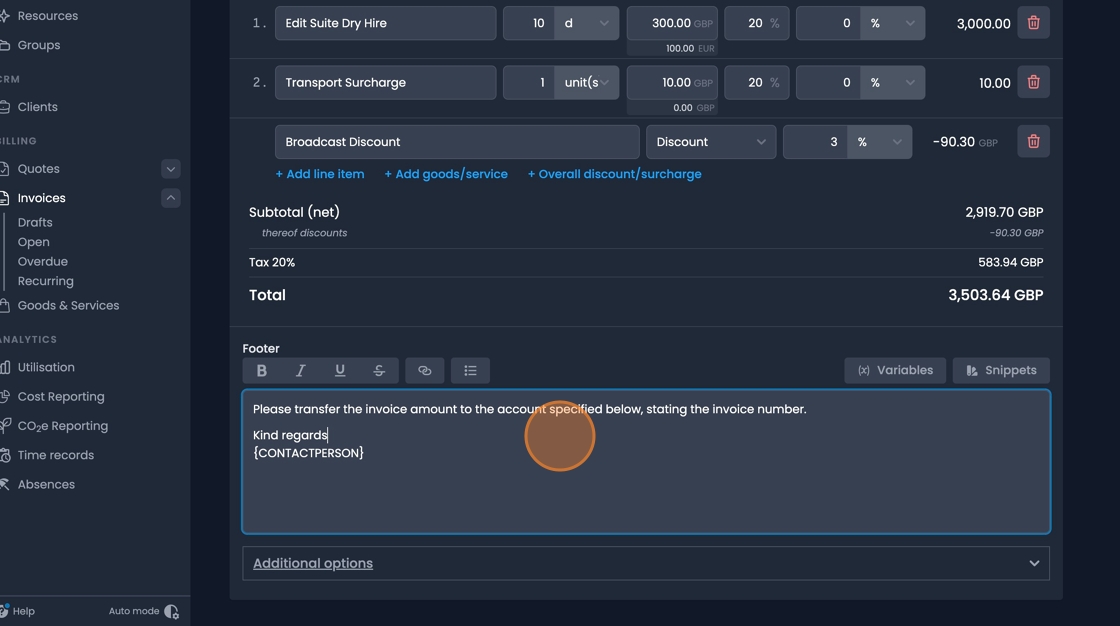
11. At the bottom of the invoice is a "footer" where unformatted text can be added to the end of the quote.
![Footer text box for adding closing information and terms to invoice bottom](/assets/images/invoicing-footer-text-box-85eed9cc12d1274e5962ebadd3f4bf4b.jpeg)

12. There are also additional options to change to the currency, language, or payment method as required.
    <br />
    <!-- -->
    Taxation rules can also be adjusted as defined by your company.

![Currency, language, and payment method options with taxation rule settings](/assets/images/invoicing-currency-language-options-83b4a4807aa2782d3481c3226bdc6b94.webp)

## Convert quotes to invoices[​](#convert-quotes-to-invoices "Direct link to Convert quotes to invoices")

13. Navigate to the Quotes tab ans select a finalised quote.

![Quotes tab selection interface for choosing finalized quotes to convert](/assets/images/invoicing-quotes-tab-selection-9179145a0a1c41fe1d26d569b837881a.webp)

14. Click on the further options button and select "Create invoice".

![Create invoice option in quote actions menu for conversion process](/assets/images/invoicing-create-invoice-option-e559f005a49d312ea334f92ff5770909.webp)


15. Select which elements from the quote you would like to transfer to the invoice.

![Quote elements transfer selection for choosing items to include in invoice](/assets/images/invoicing-quote-elements-transfer-e63381ca99ff2923acbbe71e183a49db.webp)

16. Choose whether to create a single invoice, or split the total into multiple invoices.
![Single or multiple invoice choice for splitting quote into separate invoices](/assets/images/invoicing-single-multiple-invoice-choice-6c5d643428e3857c1973181c321e4f7e.webp)


17. Click "Create invoice"
    <br />
    <!-- -->
    You'll be transferred to the invoice tab with a new draft invoice containing the items from the quote.
![Create invoice button to finalize quote conversion and generate draft invoice](/assets/images/invoicing-create-invoice-button-2af502f46bfeb3cf3da3453d9cd04479.webp)

## Invoice preview[​](#invoice-preview "Direct link to Invoice preview")


18. Activate the "Preview" button to view your Invoice while building.
    <br />
    <!-- -->
    Use the arrow to navigate between pages. Zoom and refresh as required.
![Preview mode interface for viewing invoice layout with navigation and zoom controls](/assets/images/invoicing-preview-mode-c766430e6b68cb58fafcd0eb2b9301d0.webp)

## Finalize invoices[​](#finalize-invoices "Direct link to Finalize invoices")


19. Once content: click the finalize button.
    <br />
    <!-- -->
    Adjust document options as required.

![Finalize button with document options for completing invoice preparation](/assets/images/invoicing-finalize-button-0faea07ae9adb6bd8beb34320b69013f.webp)

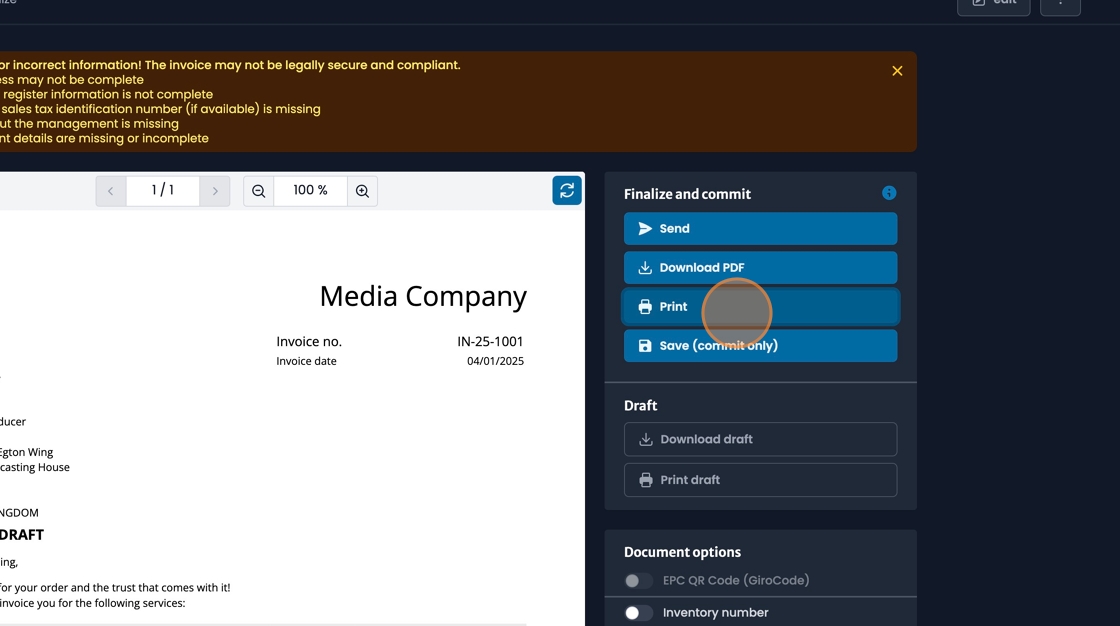
20. Then select how you wish to distribute your Invoice
![Invoice distribution options for sending, downloading, or printing completed invoices](/assets/images/invoicing-distribution-options-0126aa98f2d42784ca26c6394014fa15.jpeg)