# Quoting
freispace can create beautiful and comprehensive quotes and allows for any complete control of your quote design.
## Creating a New Quote[](#creating-a-new-quote "Direct link to Creating a New Quote")

1. Navigate to the "Quotes" tab
2. Click "New quote" on the top right.
## Quote Recipient[](#quote-recipient "Direct link to Quote Recipient")

Either enter details in the "Recipient" field manually, or click "Select" to choose from your list of clients.
tip
Clients can be used for automating for automating currency changes and pricing variations for "Goods and Services".
## Quote Details[](#quote-details "Direct link to Quote Details")
1. Amend details on the top right as required.


2. There is a text box for adding details or greetings.
The "Snippets" button can used for creating and accessing text templates.

3. Use the "Variables" button for adding automated detailed elements such "Date and Time" , "Recipient", "Quote"
## Building your quote - adding line items[](#building-your-quote---adding-line-items "Direct link to Building your quote - adding line items")
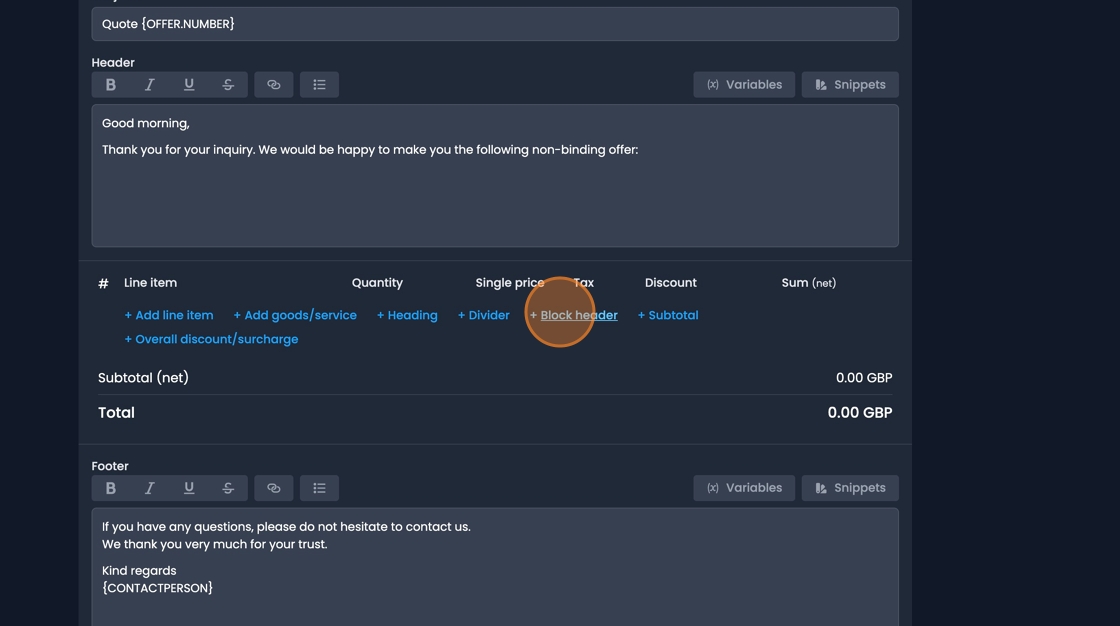
1. Click "Block header" to start a new block of line items.

2. Click "Add goods/service" to add predefined items from your list of goods and services.
tip
Using Predefined "Goods and Services" allows for automating pricing and currency variations based on issuing company, client or client group.

3. Click "Add line item" to enter a custom item.
Adjust "unit(s)" and pricing options as required.
4. Click and drag the arrows on the left to rearrange the position of the items within a quote.
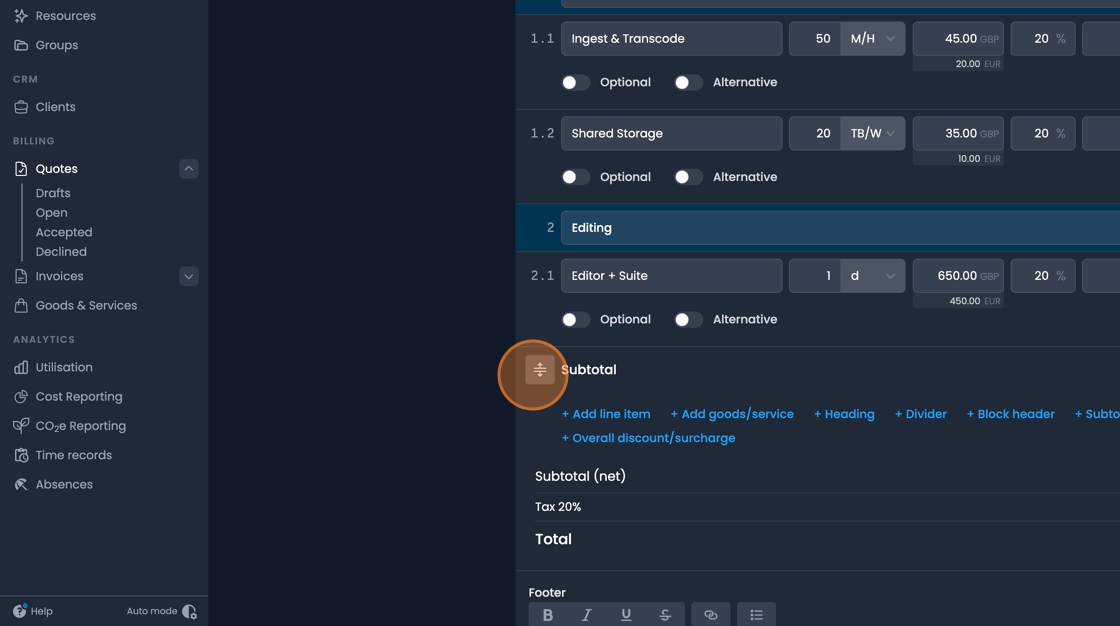
5. Add other items such as "Subtotals", "Dividers", "Overall discount/surcharge" as required.


6. At the end of the quote is another text box for adding unformatted information. Once again snippets and variables can be used for automated formatting.
## Quote Preview[](#quote-preview "Direct link to Quote Preview")


Activate the "Preview" button for a live view print preview while building.
Use the arrows to navigate between pages, and the zoom and refresh buttons as required.
## Finalize and Distribute[](#finalize-and-distribute "Direct link to Finalize and Distribute")
When complete click "Finalize" and adjust document options as required.

Use one of the following options to distribute the final quote:
* "Send" : Email the quote to the recipient directly through freispace
* "Download PDF": Generates a PDF file for distribution
* "Print": For direct printing
* "Save (commit only)": Commit quote, no distribution.
tip
Duplicate and edit existing quotes, rather than building each quote from scratch to save time.