# Project Planning using Gantt Charts

Plan your projects with a full-fledged Gantt chart, including milestones, phases and dependencies.

## Navigation[​](#navigation "Direct link to Navigation")

1. Navigate to the "Planning" Tab of the project you want to work on.

![Planning tab navigation for accessing project gantt chart interface](/assets/images/gantt-planning-tab-navigation-06909904c935f00b932a36c03b2d326d.webp)

2. To adjust the time range click on "Display settings" move the slider as required.

![Display settings slider for adjusting gantt chart time range view](/assets/images/gantt-display-settings-slider-25ec54b3384d40a3d88cbc81528a46be.webp)

3. Use the buttons on the top left to show or hide "Subprojects" or "Phases"

![Toggle buttons for showing or hiding subprojects and phases in gantt view](/assets/images/gantt-subprojects-phases-toggle-e993d745dac5b7edc1546beab4853069.webp)

4. Clicking a booking will open the details overview.
   <br />
   <!-- -->
   Double clicking a booking will open the editing window.

![Booking click interaction showing details overview and double-click editing](/assets/images/gantt-booking-click-details-eb24eb929191753117ed167094be16e4.webp)

5. Bookings can also be accessed by clicking the name on the right.

![Booking name access method for alternative gantt chart navigation](/assets/images/gantt-booking-name-access-72d076299c2ab0ce57ed1957fd69fd76.webp)

## Adding new entries[​](#adding-new-entries "Direct link to Adding new entries")

6. New bookings can be entered by clicking the "Add booking" button at the top right.

![Add booking button in top right for creating new gantt chart entries](/assets/images/gantt-add-booking-button-2a1b05af616faa525d62bd57ebc12668.webp)

7. New "Items", "Phases" and "Milestones" can be added using the field at the top center.
   <br />
   <!-- -->
   Enter a name for the new entry, select the type of element and click "Add"

![Add items, phases, and milestones interface at top center of gantt chart](/assets/images/gantt-add-items-phases-milestones-0df11cd148d42f4fcdf7f2efa809b00c.webp)

8. Items ca be rearranged within the gantt chart by clicking and dragging the three dots to the left of the name.

![Item rearrangement using drag handles with three dots for gantt organization](/assets/images/gantt-rearrange-items-drag-5210815d52eda79b397107209b91f85e.webp)

### Items vs. Bookings[​](#items-vs-bookings "Direct link to Items vs. Bookings")


9. Items are similar to bookings but do not allocate any resources. They can be used for example to add non-actionable information to a schedule, such as a "Blocker." or for drafting schedules
   <br />
   <!-- -->
   If required, an item can be converted to a booking at a later time.
   <br />
   <br />
   <!-- -->
   To do this open the edit dialog on the Item, Click "Convert to booking" assign relevant "Suites, staff and resources" and Click "Add booking"
![Convert item to booking interface with resource assignment options](/assets/images/gantt-convert-item-to-booking-6a566f9070667c5934f743961d09d976.webp)

### Phases[​](#phases "Direct link to Phases")


10. "Phases" can be added within the gantt chart to organise project information.
![Phase organization feature for structuring project information in gantt](/assets/images/gantt-phases-organization-952b53ce73b6cd4ab674410854096d33.webp)


11. Once a new "Phase" has been added to the chart, the location can be changed.
    <br />
    <!-- -->
    Bookings can be added into a Phase by dragging and dropping.
    <br />
    <!-- -->
    A Phase can be added within another Phase to build layers.
    <br />
    <!-- -->
    Click on the arrow next to the Phase to hide or show the encapsulated bookings.
![Phase management with drag-drop bookings and layered organization structure](/assets/images/gantt-phase-management-layers-d0a2fe715875851a55fb4caa4a9f2736.webp)

### Milestones[​](#milestones "Direct link to Milestones")


12. Add a new "Milestone" through the field at the top.
![Add milestone feature for marking important project deadlines in gantt](/assets/images/gantt-add-milestone-9ae686a2044d755858469c5545683b98.webp)


13. Once added adjust the colour, date, and other fields as required.
![Milestone configuration options for color, date, and field customization](/assets/images/gantt-milestone-configuration-c908acdaac1d475e33076626b3fa6d9c.webp)


14. Milestones can be connected with other steps in the gantt chart for clarity
![Milestone connections linking project steps for improved gantt chart clarity](/assets/images/gantt-milestone-connections-aff04ec72aaf14a81a81961ea91e238d.webp)

## Milestone-only view[​](#milestone-only-view "Direct link to Milestone-only view")

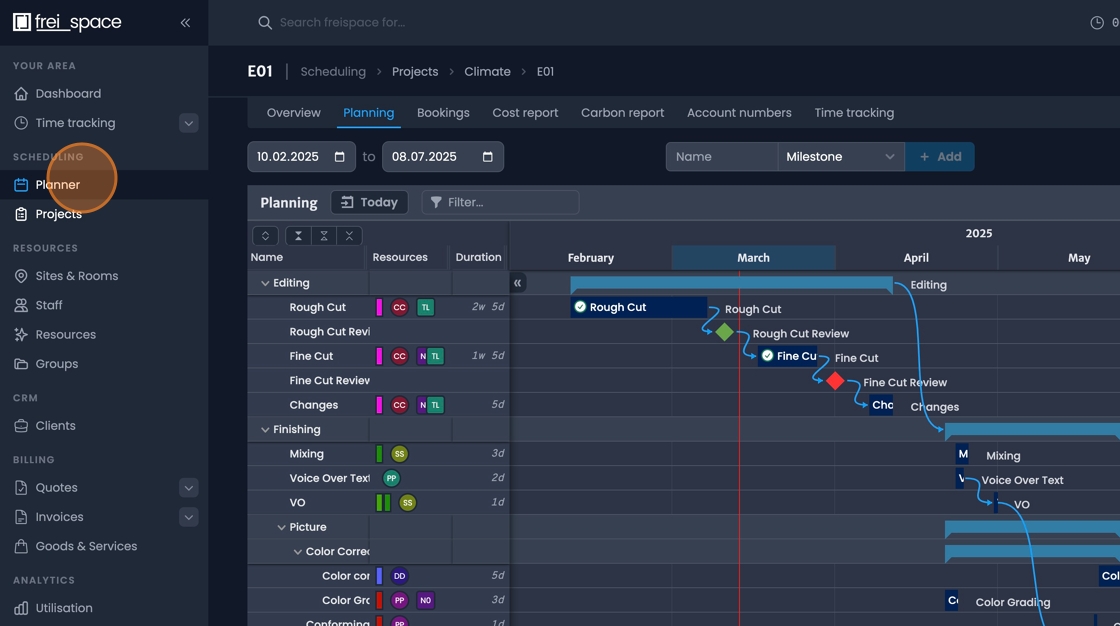
15. Navigate to the planner tab.
![Planner tab header navigation for accessing gantt planning features](/assets/images/gantt-planner-tab-header-beb5889cae070d9a656c77cac33ae986.jpeg)


16. Select "Project Gantt" or "Milestones" as required from the drop down menu on the top left.
![View type dropdown for selecting project gantt or milestones display mode](/assets/images/gantt-view-type-dropdown-fd9c3ce418fd97ee18850f10a9a15353.webp)


17. Select any projects you wish to view or work on from the drop down on the top right.
![Project selection dropdown for choosing specific projects to view in gantt](/assets/images/gantt-project-selection-dropdown-fead54a142c8fdb5905a322471bad0fa.webp)
