# Managing Existing Bookings

#### Managing Bookings[​](#managing-bookings "Direct link to Managing Bookings")

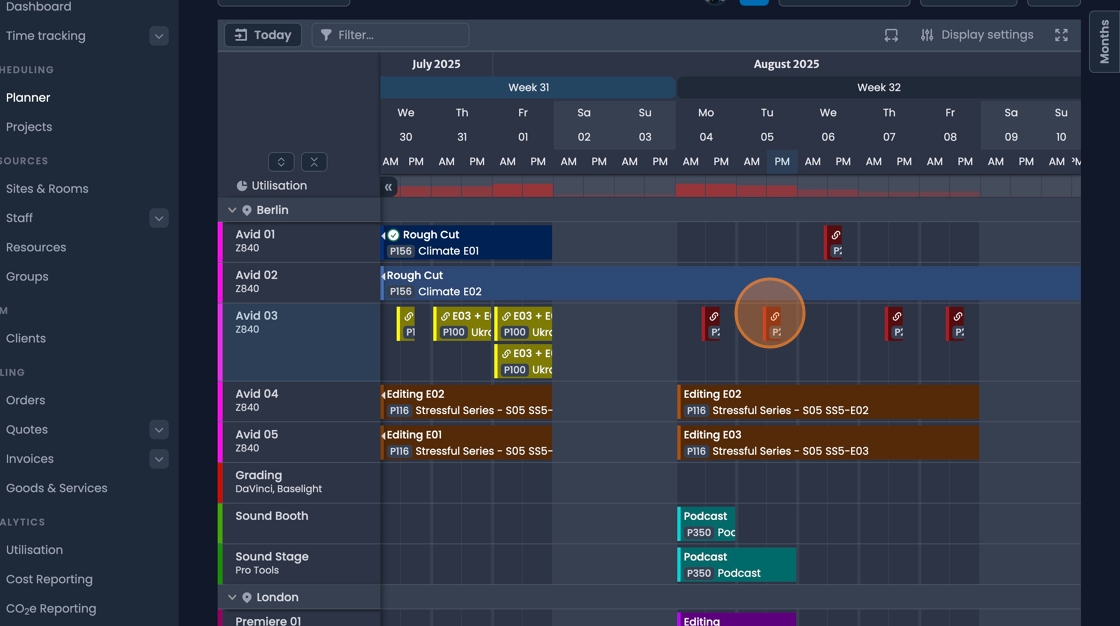
1. In most cases existing bookings are most easily managed from with the planner page.
   <br />
   <!-- -->
   The Planner page updates dynamically, displaying changes made by any user in real time without requiring a page refresh.
![Planner interface showing dynamic booking management with real-time updates](/assets/images/manage-bookings-planner-interface-5e45595f003b02ab9b05ac975e59f6cd.jpeg)

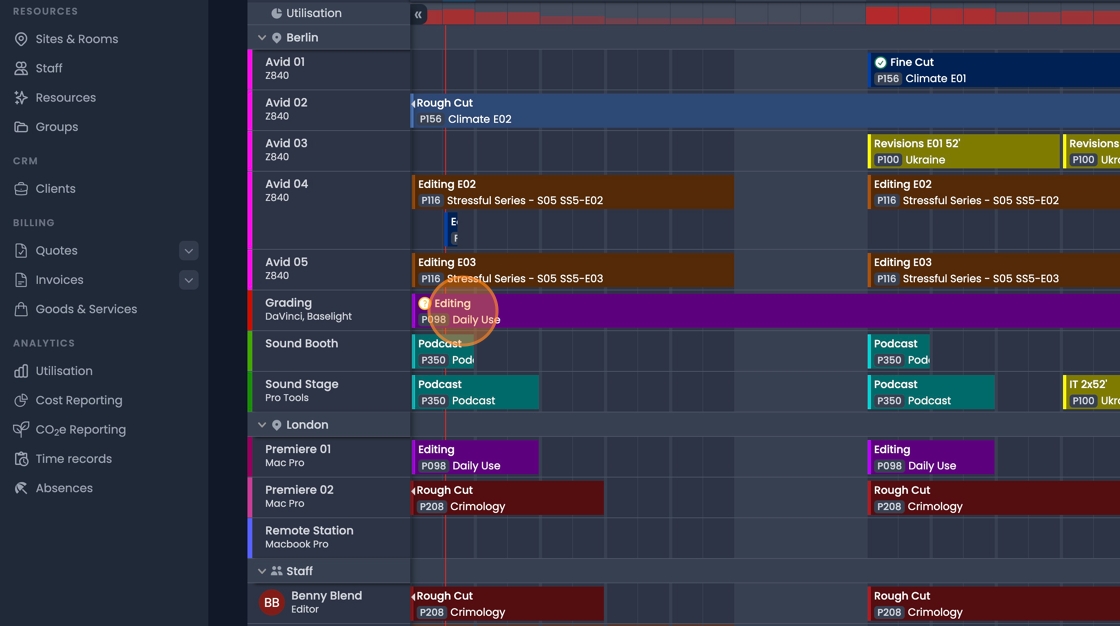
2. You can "Click & Drag" Bookings to assign them to different resources, or change the booked time and date.
![Click and drag functionality to move bookings between resources and time slots](/assets/images/manage-bookings-click-drag-move-75748dc7879ef365e87d4ff4804cbfa0.webp)



3. Use "CNT+Click\&Drag" to duplicate a booking to a new time, or resource.
![Control click and drag to duplicate bookings to new time slots or resources](/assets/images/manage-bookings-ctrl-click-duplicate-41b1cae850d7889cfd18764ed84f62e3.webp)

4. "Shift+Click\&Drag" can be used to draw a box and select multiple bookings.
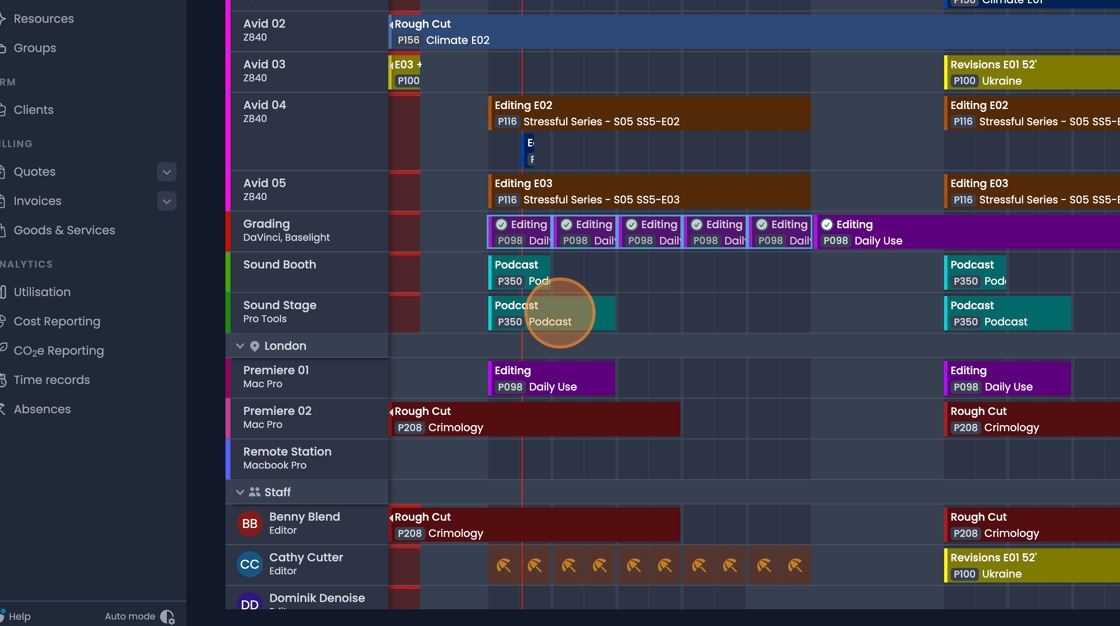
![Shift click and drag to select multiple bookings with box selection](/assets/images/manage-bookings-shift-drag-select-50e95a3188f913e392dcfea5857228cc.jpeg)

5. You can also hold "Shift" while clicking to select multiple individual bookings.
![Shift click to select multiple individual bookings for batch operations](/assets/images/manage-bookings-shift-click-multiple-8ff134d91fd0ddbff356d22893511d2f.jpeg)

6. Once selected you can "Click and drag" to change the date and time of multiple bookings.

![Drag multiple selected bookings to change their date and time simultaneously](/assets/images/manage-bookings-drag-multiple-9f16d0168e402a957b725f443ee810d1.webp)


7. Single click on a booking will open up the full details.
   <br />
   <!-- -->
   A double click will open the editing dialog to make changes.
![Single click for booking details and double click for editing dialog](/assets/images/manage-bookings-single-double-click-82d1433db0e49f7a62a97cac59130dd6.webp)

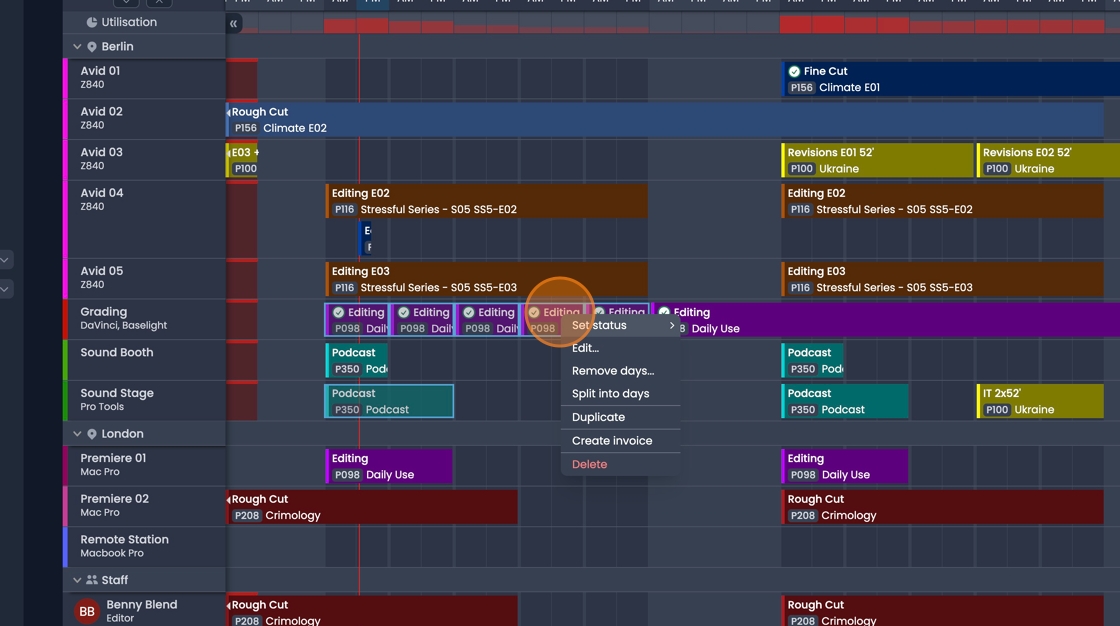
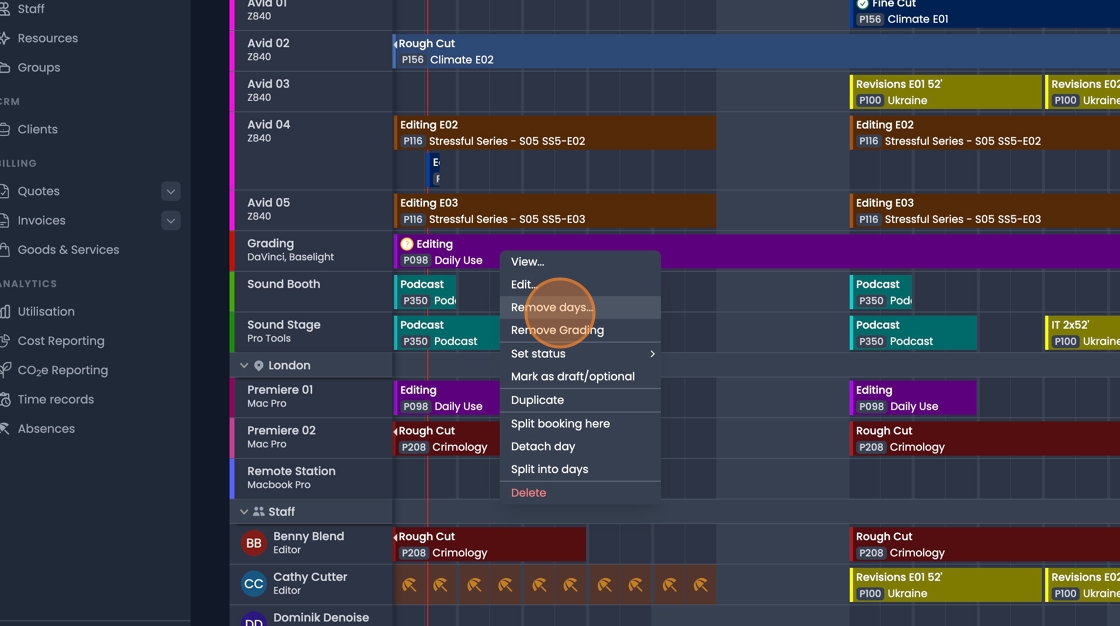
8. A number of tools can be accesses directly through a right click on the booking.
![Right-click context menu showing booking management tools and options](/assets/images/manage-bookings-right-click-menu-14b0346866c3cbfcc93cc73d9e8733fe.jpeg)

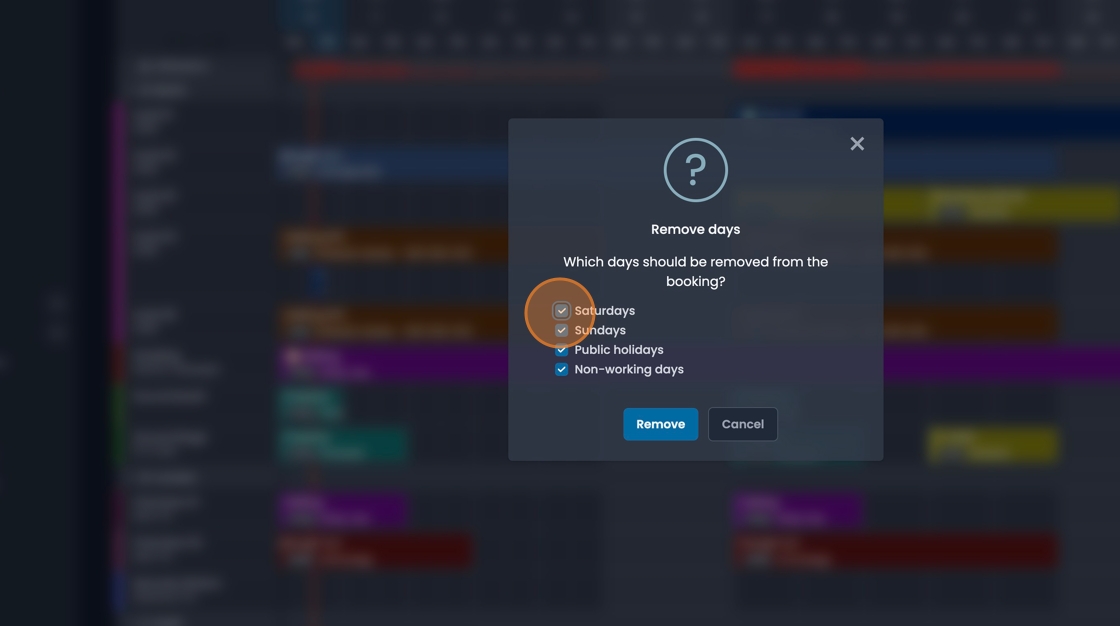
9. Remove days can be used to cut out days that shouldn't be included in the booking.
![Remove days feature to exclude specific days from booking duration](/assets/images/manage-bookings-remove-days-f794d324723f4f3a9da1b8c3ae7b1285.jpeg)

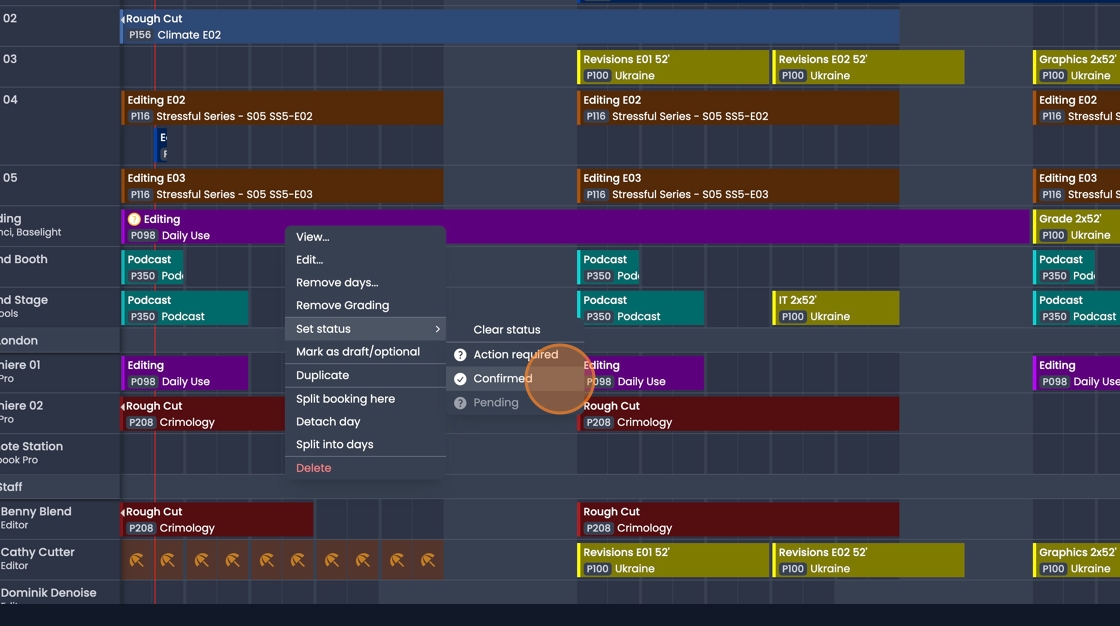
10. The "Status" of the booking can be changed
![Booking status change options for updating project phase or completion](/assets/images/manage-bookings-change-status-3372487e1781c7b24389bfa48936f6a7.jpeg)

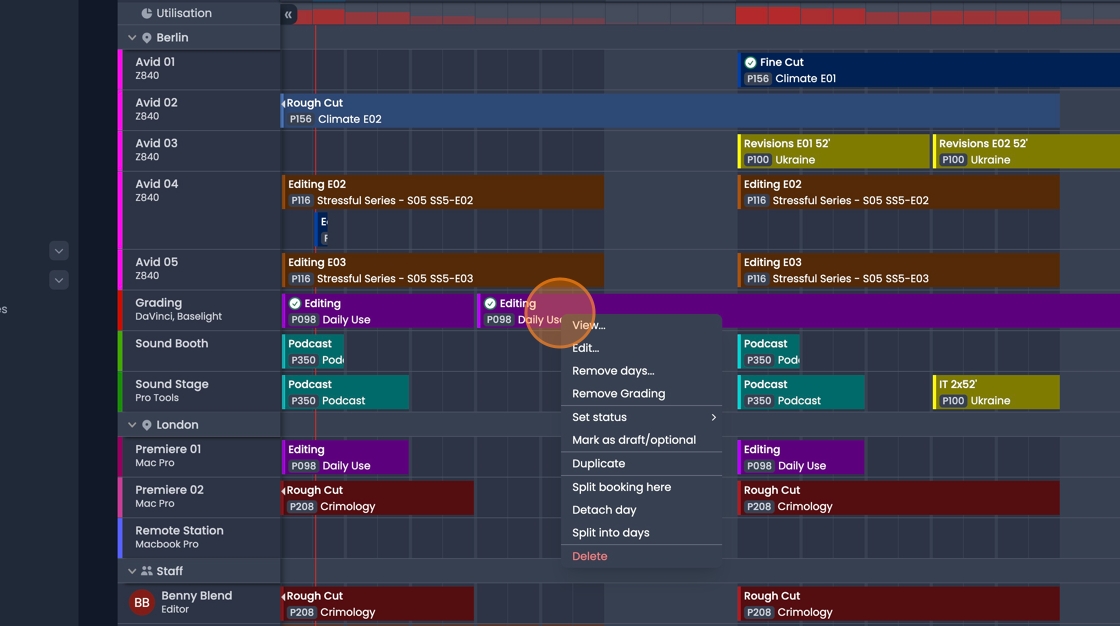
11. "Split booking here" separates the booking into two parts that can be edited separately.
![Split booking feature to divide booking into two separate editable parts](/assets/images/manage-bookings-split-booking-16edca136125deef5cffc705a337451d.jpeg)

12. "Detach day" will separate one day of the booking.
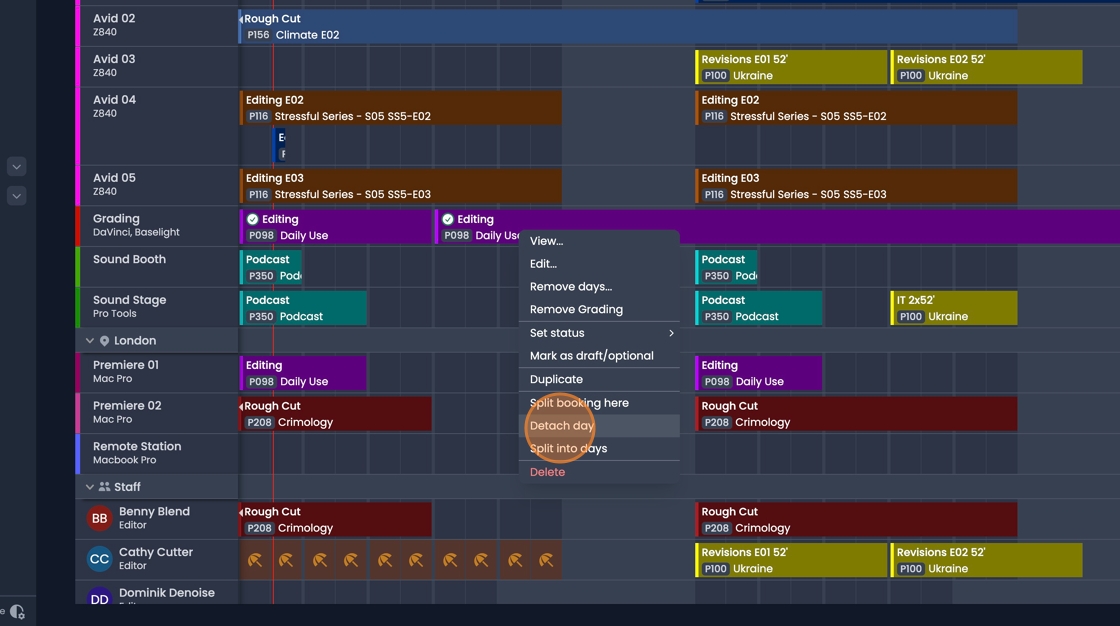
![Detach day option to separate single day from multi-day booking](/assets/images/manage-bookings-detach-day-9a2e08783472c65764e64581a480e229.jpeg)


13. "Split into days" will split the entire booking into individual days.
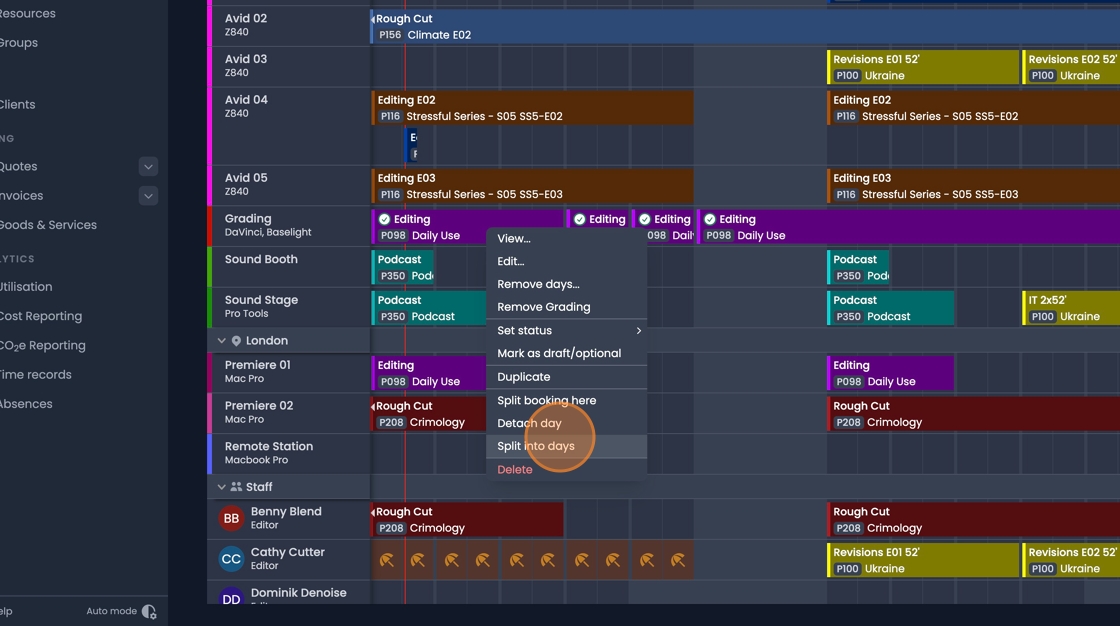
![Split into days feature to convert booking into individual daily bookings](/assets/images/manage-bookings-split-into-days-0565809633cb76bd07bc4db6831db77a.jpeg)

14. With multiple bookings selected "Right-Click" and select "Edit..." to make bulk updates.
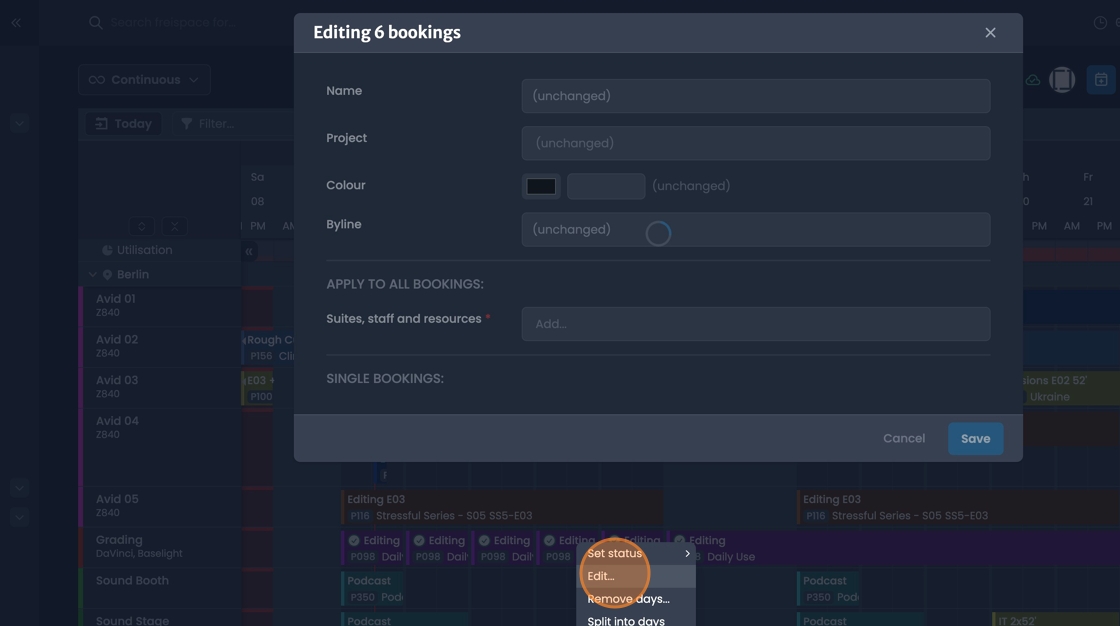
![Bulk edit option for making changes to multiple selected bookings](/assets/images/manage-bookings-bulk-edit-ba6f3e0d22426de435a5946a32087142.jpeg)

15. Change to bookings, and bulk updates can also be carried out through the "Bookings" tab in the project pane.

![Project tab bookings view for managing and updating booking information](/assets/images/manage-bookings-project-tab-00d798442648eb41be810f664287226a.webp)


16. To make bulk updates, select the checkboxes next to the bookings you wish to modify, then select the edit symbol.
![Checkboxes for selecting bookings and edit symbol for bulk updates](/assets/images/manage-bookings-bulk-update-checkboxes-e763068b2b5e0b71988a5423b7944ea6.webp)

#### Linked Bookings[​](#linked-bookings "Direct link to Linked Bookings")

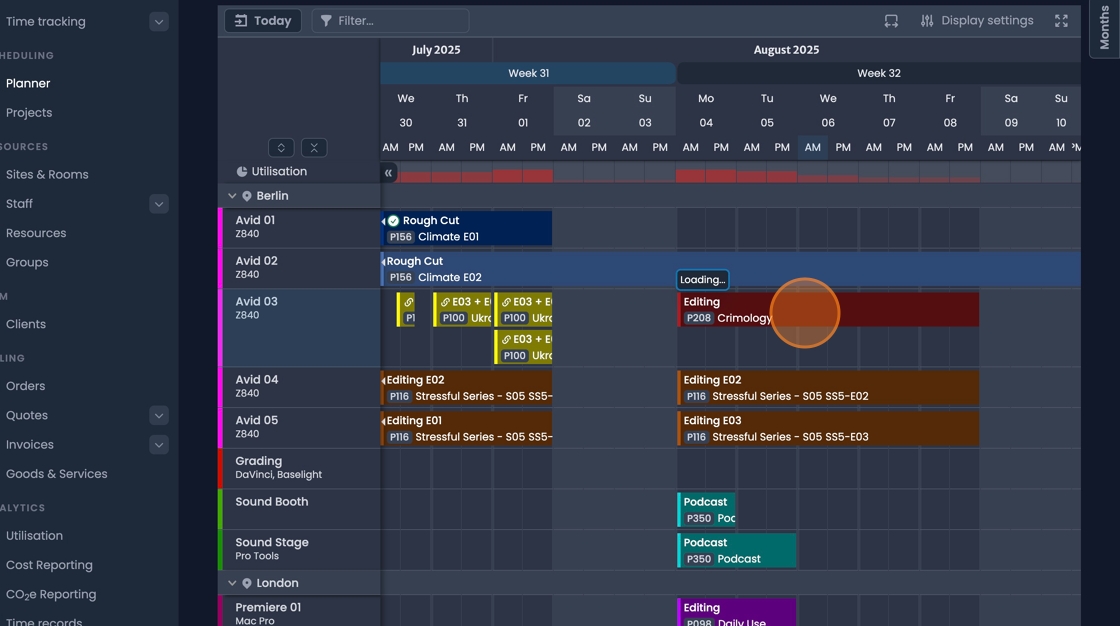
17. When a new booking is created with weekdays removed, these bookings will display a chain symbol to show that they are linked together.
![Chain symbol indicating linked bookings with weekdays removed](/assets/images/manage-bookings-linked-chain-symbol-b244a9411fdc154097c99f80deabdf92.jpeg)

18. When splitting an existing booking you can choose whether the separate parts should remain linked or not. Click "Split & link"
![Split and link option to maintain connection between separated booking parts](/assets/images/manage-bookings-split-link-option-d314bc0de99bdb763f109852320b7ed4.webp)


19. When editing a linked booking, you can choose to edit just the single booking, or all of the linked bookings.
![Edit options for single booking or all linked bookings in the chain](/assets/images/manage-bookings-edit-linked-options-7b113e9d6da6f162fbf0280f73448e1f.webp)

20. If the "Edit all bookings" option is selected, any changes made will effect all of the bookings in the chain.


21. Tasks added to a booking in a chain will be applied across the chain.<br /><!-- -->If the task is checked off on one booking, it will be checked off for the entire chain.
![Chain task management showing tasks applied across linked bookings](/assets/images/manage-bookings-chain-tasks-db72c1cdca0c2e874162b32a6789cc53.webp)

22. Click this icon.

![Icon reference for booking management interface navigation](/assets/images/manage-bookings-icon-reference-981f8261dd769c8c85b53e27823a91cc.jpeg)